
The Cursed Planet
Background
This game is an adaptation of the Italian adventure Morgan Tyler: Il Pianeta Maledetto by Bonaventura Di Bello. It was originally written using The Quill and Illustrator and published by Edizioni Hobby S.r.l. on the cover tape of Viking, no. 2, February 1987 for the ZX Spectrum and Commodore 64.
The data was extracted from the C64 version using UnQuill, translated to English and rewritten for a modern audience with the original author's permission. The new version includes many enhancements that weren't in the original. The coding was done using Inform 6 and the PunyInform library. Type ABOUT in the game for further info.
Introduction
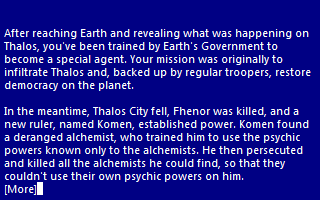
After reaching Earth and revealing what was happening on Thalos, you've been trained by Earth's Government to become a special agent. Your mission was originally to infiltrate Thalos and, backed up by regular troopers, restore democracy on the planet.
In the meantime, Thalos City fell, Fhenor was killed, and a new ruler, named Komen, established power. Komen found a deranged alchemist, who trained him to use the psychic powers known only to the alchemists. He then persecuted and killed all the alchemists he could find, so that they couldn't use their own psychic powers on him.
Komen then moved the capital to the fortified Komen City, which was, unsurprisingly, named after himself. If there's a way of counteracting Komen's new-found psychic powers, there's only one man who might know it: the Great Keeper of the Galactic Ways. He's an ancient alchemist now hidden in the radioactive part of the planet.
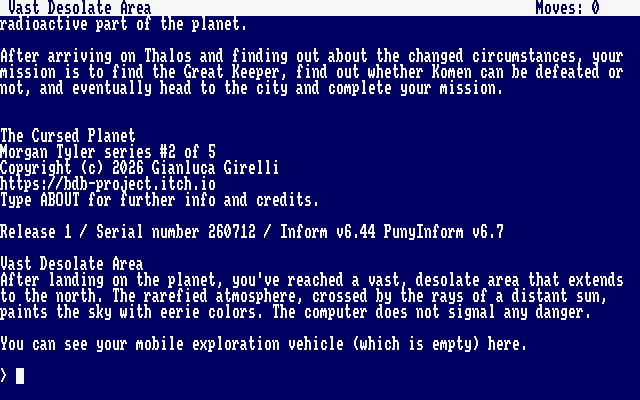
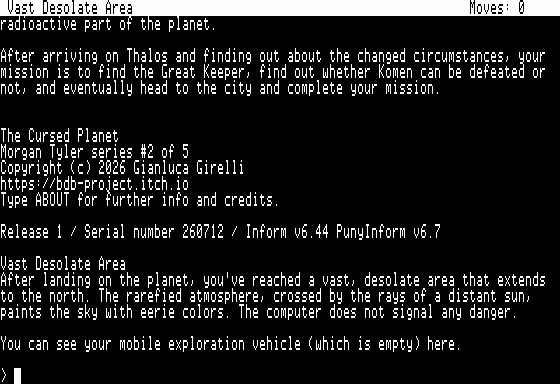
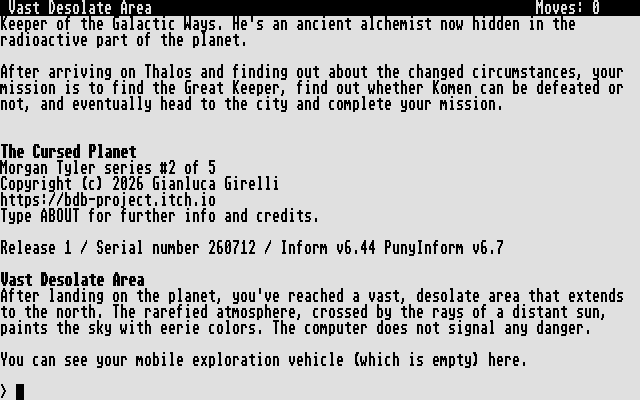
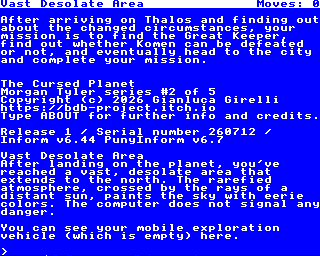
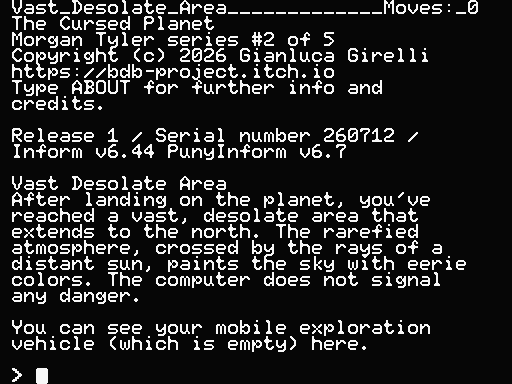
After arriving on Thalos and finding out about the changed circumstances, your mission is to find the Great Keeper, find out whether Komen can be defeated or not, and eventually head to the city and complete your mission.
Genre: Science Fiction
Difficulty level: Medium
Note: This is the second game in the Morgan Tyler saga. The games are self-contained, but it is recommended that you play them in order. The 5-episode saga consists of:
- Morgan Tyler #1: Eclipse
- Morgan Tyler #2: The Cursed Planet (this game)
- Morgan Tyler #3: Star Plague (coming soon)
- Morgan Tyler #4: Shipwreck on Guyoth IV (coming soon)
- Morgan Tyler #5: Street Trooper (coming soon)
Instructions
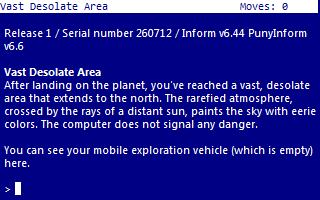
This is a traditional text adventure. A text adventure is a form of computer game that presents you with a story. You take on the role of the main character in the story and control that character's actions. The story has a goal and you will need to solve puzzles in order to achieve that goal. The computer tells you where you are, what you can see and what's happening around you. You can then move around, examine the things you find and manipulate those things by telling the computer what to do using simple English commands.
Commands consist of a verb phrase, optionally followed by a noun phrase. Most commands can be abbreviated to a verb followed by a noun. For example, GET THE PHOTON RIFLE can be abbreviated to GET RIFLE.
If the verb is followed by a preposition, this may alter its meaning. For example, GET WATER will attempt to pick up the water, but GET IN WATER will attempt to enter it.
In some cases, the verb phrase and first noun phrase may be followed by a second noun phrase. The two noun phrases are usually separated by a preposition. For example, HIT MONSTER will attempt to hit the monster with your bare hands (as you didn't specify a second noun phrase), but HIT MONSTER WITH ROCK will attempt to hit the monster with the rock. If you only use a verb and a noun, the game will generally tell you if it needs an extra phrase or implicitly try to deduce what is needed for the second phrase.
Don't panic! It's not as complicated as it sounds. Just use simple English sentences starting with a verb and it will all feel quite natural.
Movement
To move around, use commands like GO NORTH and GO SOUTH. You can move in any of the four cardinal compass directions, as well as UP and DOWN. To save typing, movement commands can be abbreviated to N, S, E, W, U and D. You can sometimes use other movement commands such as IN, OUT, ENTER, EXIT or CLIMB. These will be reasonably obvious when the time comes.
Examining things
Make sure you EXAMINE everything you come across, even insignificant things like scenery and objects mentioned in room descriptions, as subtle hints and clues are scattered everywhere. To save typing, EXAMINE can be abbreviated to X. For example, EXAMINE COMPUTER can be abbreviated to X COMPUTER.
Some objects may initially be hidden. You can LOOK IN containers and LOOK ON surfaces, but EXAMINE will usually provide the same information. You can also SEARCH some things, but the game will give you a clue if this is necessary.
You may like to try your other senses when it seems appropriate, e.g. SMELL, TOUCH or LISTEN. Unlike EXAMINE, these actions aren't necessary to solve any puzzles.
Manipulating objects
Apart from examining things, most of your time will be spent manipulating objects. Use commands like GET or TAKE to pick up an object, e.g. GET RIFLE. Use commands like DROP or DISCARD to drop an object, e.g. DROP RIFLE.
To see what you're currently carrying, use INVENTORY (or I). As you're not a pack horse, you can only carry ten items at a time.
There are many other verbs that can be used to manipulate objects. These will be fairly obvious when the time comes. Common verbs include LIGHT (or BURN), EXTINGUISH, EAT, DRINK, ATTACK, CUT, DIG and so on. Use PUT, PLACE or INSERT to put objects into containers or on supporters, e.g. PUT SUBSTANCE ON ME or PUT NOTE IN VEHICLE.
Communicating with characters
You will encounter a few non-player characters in this game, not necessarily human. When you first meet new characters, in addition to examining them, you should try talking to them if they're human, e.g. TALK TO MAN. To get further information from them, try asking them about something relevant, e.g. ASK MAN ABOUT CRYSTALS. If there is only one character present, then you can abbreviate this, e.g. ASK ABOUT CRYSTALS. You may need to ask one character, in particular, about a few things to work out what's going on.
You can also try showing things or giving things to a character if it seems appropriate, e.g. SHOW NOTE TO MAN or GIVE FOOD TO ANIMAL.
Advanced features
You can use IT or THEM to refer to the noun used in the previous command, e.g. EXAMINE SUIT, GET IT (for a singular object) or EXAMINE ROCKS, SEARCH THEM (for plural objects). You can also use HIM and HER to refer to male and female characters used in the previous command, e.g. EXAMINE MAN, TALK TO HIM.
You can refer to multiple objects by separating the objects with AND, e.g. GET SUIT AND HELMET. Using IT and THEM in the next command will only refer to the last of those objects, e.g. EXAMINE IT will refer to the helmet.
You can use ALL to refer to all the appropriate objects with GET and DROP, e.g. GET ALL to get everything in the current location, GET ALL FROM VEHICLE to get everything from the vehicle and DROP ALL to drop everything you're holding.
When using ALL, you can use EXCEPT or BUT to exclude some objects, e.g. DROP ALL EXCEPT THE RIFLE.
Finally, you can enter multiple commands on the same line by separating them with a period, e.g. EXAMINE SOLDIER. SEARCH HIM.
Other commands
Use LOOK (or L) to refresh the display.
Use VERSION to get the game version. Use ABOUT or INFO to get background information and credits for the game. Use CREDITS to get the credits only.
Use SAVE to save your progress. Use RESTORE to restore a saved game.
Use UNDO to undo the last move. This is handy if you change your mind or make a mistake. You shouldn't be able to get into an unwinnable situation in this game. Nevertheless, save the game when it looks like you're about to get into a dangerous situation or do something risky.
Use AGAIN (or G) to repeat the last command.
Use WAIT (or Z) to do nothing apart from pass the time.
Use HELP to get a brief reminder of how to play the game or HINT to get a context-sensitive hint related to your current location or current situation.
Use RESTART to restart the game from the beginning. Use QUIT (or Q) to quit without restarting. (Don't use QUIT with the online version of the game, as the game will appear to be locked up. In this case, press the Back button in your browser.)
Most importantly, have fun and enjoy the game.
Keyboard shortcuts
Some interpreters have keyboard shortcuts. If you are using an interpreter on a computer with a conventional keyboard, most will allow you to press the up and down arrow keys to cycle through your past commands. This is handy if you want to repeat the previous command or correct a typo.
Playing the game
There are three ways to play the game:
- Click the Run game button (above) to play the game in a browser.
- Download the z5 file and play the game using a z-code interpreter (see Install instructions below).
- Download a disk image for a retro computer and play it on an emulator or real hardware.
Credits
Game
Original concept and map by Gian Paolo Gentili.
Story and technical supervision by Bonaventura Di Bello.
English translation and game skeleton by Garry Francis.
Game redesign and coding by Gianluca Girelli.
Playtesting by andrewj, Garry Francis, Pablo Martinez and Robert Eggleston.
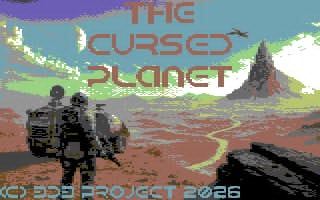
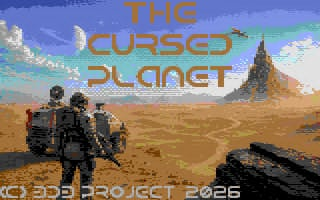
Original hand-drawn cover image © 2026 Gianluca Girelli. AI was used to colour and re-edit the original hand-drawn sketch. No generative AI was used to develop the game itself. Title font by Isaak K.
Other resources
Inform 6 compiler, language and library originally written by Graham Nelson and now maintained by David Griffith, David Kinder, Andrew Plotkin et al.
PunyInform library written by Johan Berntsson and Fredrik Ramsberg based on the Inform 6 library.
ZAbbrev written by Henrik Åsman.
Parchment interpreter written by Dannii Willis et al.
Apple IIe disk image creator written by Bill Martens, using interpreter written by Infocom and interleaving utility written by Steve Nicholas.
Atari 130XE disk image creator and interpreter written by Jinroush.
Atari ST interpreter written by Infocom.
Commodore disk image creator and Ozmoo interpreter written by Johan Berntsson and Fredrik Ramsberg.
BBC/Electron disk image creator and Ozmoo interpreter for Acorn computers written by Steve Flintham based on the Commodore version.
VEZZA interpreter for Amstrad CPC/PCW and MSX written by Shawn Sijnstra.
Download
Install instructions
Z-code interpreters
Download the z5 file and open it in a Z-code interpreter that supports the z5 story file format. There are many Z-code interpreters available for all the major, minor and retro platforms. See IFWiki for a list of the most common ones, together with download links.
Further downloads can be found at the Interactive Fiction Archive. Navigate to infocom/interpreters for Z-code only and interpreters-multi for both Z-code and other formats.
Retro computers
Download the disk image for your retro computer of choice. Auto-boot on an emulator for that computer or transfer the disk image to appropriate media to play on real hardware. If you're a retro computer user, you'll know how to do this. See notes for specific computers below.
Atari 130XE
The interpreter requires 128K, so you'll need an Atari 130XE or equivalent. There is no UNDO with this interpreter, so save your game before doing anything risky.
Atari ST
If you want to run from a hard drive, create a new folder for this game and copy the PLAY.PRG and STORY.DAT files to that folder. If using a colour monitor, change to medium resolution. Double-click on PLAY.PRG to run the game. You can also copy the COVER.PI1 file from the AUTO folder, but you'll need a way to view this manually in low resolution on a colour monitor.
BBC/Electron
When the Ozmoo screen appears, select a screen mode (the default is 40x32), note the in-game controls (particularly Shift to show the next page of text when playing the game), then press Enter to continue.
Commodore 128
The game can be run in 40 columns or 80 columns, depending on your configuration. If using the VICE emulator, type GRAPHIC 5 to select the 80-column screen. This version does not auto-boot, so type LOAD "*",8,1. When the READY prompt appears, type RUN.
MSX
If the game doesn't auto-boot, type RUN "CPM".
Spectrum Next
The Spectrum Next has a built-in Z-code interpreter. Download the z5 file and copy this to the /GAMES/Z-Machine folder on the SD card provided with the computer. Insert the SD card into the Spectrum Next, navigate to the above folder, use the arrow keys to select the z5 file and press ENTER to start the game.

Leave a comment
Log in with itch.io to leave a comment.