
Eclipse
Background
This game is an adaptation of the Italian adventure Morgan Tyler: Eclypse by Bonaventura Di Bello. It was originally written using The Quill and Illustrator and published by Edizioni Hobby S.r.l. on the cover tape of Epic 3000, no. 7, December 1986 for the ZX Spectrum. It was later published on the cover tape of Explorer, no. 7, May 1987 for the Commodore 64 and MSX.
It has now been translated to English and rewritten for a modern audience with the original author's permission. This new version includes many enhancements that weren't in the original. Type ABOUT in the game for further info.
Introduction
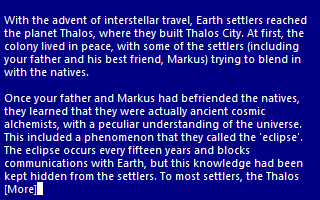
With the advent of interstellar travel, Earth settlers reached the planet Thalos, where they built Thalos City. At first, the colony lived in peace, with some of the settlers (including your father and his best friend, Markus) trying to blend in with the natives.
Once your father and Markus had befriended the natives, they learned that they were actually ancient cosmic alchemists, with a peculiar understanding of the universe. This included a phenomenon that they called the 'eclipse'. The eclipse occurs every fifteen years and blocks communications with Earth, but this knowledge had been kept hidden from the settlers. To most settlers, the Thalos natives appeared as a simple people with moderate technological capabilities, and nothing more.
Fhenor Darkscepter was initially the Governor of Thalos and represented the Earth's Government. Towards the end of the colonisation phase, Darkscepter rose to power, became a dictator, and took full control of the city and, subsequently, the planet. This was possible thanks to information censorship and the brainwashing of any opponents. Brainwashing was not imposed on the alchemists, as they were outside the circle of power and were considered harmless.
Determined to fight Fhenor's dictatorship, your father and Markus, together with a few alchemists, developed a plan to escape Thalos and return to Earth to reveal what's really been happening on Thalos. One night, during the eclipse, Markus boarded a small spaceship and departed towards Earth to seek help. All contact was lost soon after take off, but that was to be expected because of the eclipse. As no help ever arrived from Earth, it was assumed that Markus never made it.
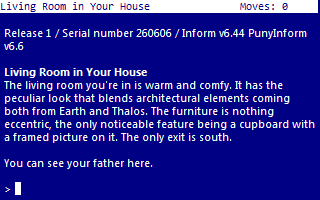
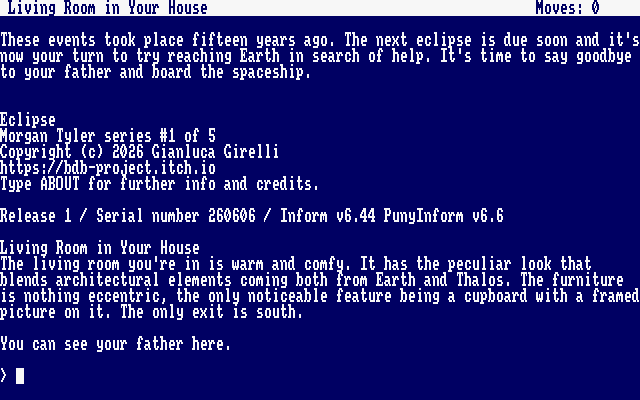
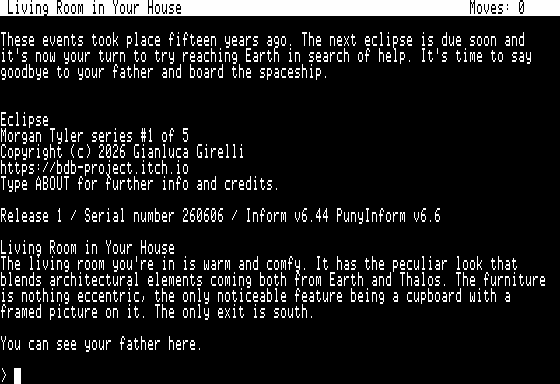
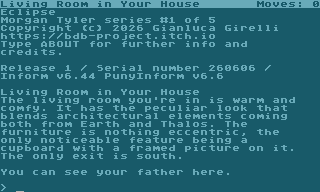
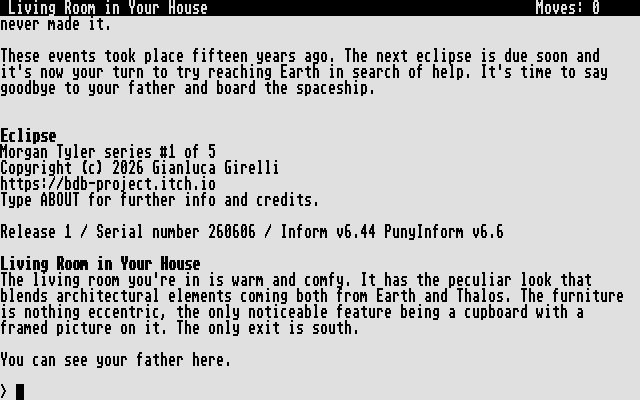
These events took place fifteen years ago. The next eclipse is due and it's now your turn to try reaching Earth in search of help. It's time to say goodbye to your father and board the spaceship.
Genre: Science Fiction
Difficulty level: Medium
Note: This is the first game in the Morgan Tyler saga. The games are self-contained, but it is recommended that you play them in order. The 5-episode saga consists of:
- Morgan Tyler #1: Eclipse (this game)
- Morgan Tyler #2: The Cursed Planet
- Morgan Tyler #3: Star Plague (coming soon)
- Morgan Tyler #4: Shipwreck on Guyoth IV (coming soon)
- Morgan Tyler #5: Street Trooper (coming soon)
Instructions
This is a traditional text adventure. A text adventure is a form of computer game that presents you with a story. You take on the role of the main character in the story and control that character's actions. The story has a goal and you will need to solve puzzles in order to achieve that goal. The computer tells you where you are, what you can see and what's happening around you. You can then move around, examine the things you find and manipulate those things by telling the computer what to do using simple English commands.
Commands consist of a verb phrase, optionally followed by a noun phrase. Most commands can be abbreviated to a verb followed by a noun. For example, GET THE RIFLE can be abbreviated to GET RIFLE.
If the verb is followed by a preposition, this may alter its meaning. For example, GET WATER will attempt to pick up the water, but GET IN WATER will attempt to enter it.
In some cases, the verb phrase and first noun phrase may be followed by a second noun phrase. The two noun phrases are usually separated by a preposition. For example, HIT MONSTER will attempt to hit the snake with your bare hands (as you didn't specify a second noun phrase), but HIT MONSTER WITH ROCK will attempt to hit the snake with the rock. If you only use a verb and a noun, the game will generally tell you if it needs an extra phrase or implicitly try to deduce what is needed for the second phrase.
Don't panic! It's not as complicated as it sounds. Just use simple English sentences starting with a verb and it will all feel quite natural.
Movement
To move around, use commands like GO NORTH and GO SOUTH. You can move in any of the four cardinal compass directions, as well as UP and DOWN. To save typing, movement commands can be abbreviated to N, S, E, W, U and D. You can sometimes use other movement commands such as IN, OUT, ENTER, EXIT or CLIMB. These will be reasonably obvious when the time comes.
Examining things
Make sure you EXAMINE everything you come across, even insignificant things like scenery and objects mentioned in room descriptions, as subtle hints and clues are scattered everywhere. To save typing, EXAMINE can be abbreviated to X. For example, EXAMINE LOCKER can be abbreviated to X LOCKER.
Some objects may initially be hidden. You can LOOK IN containers and LOOK ON surfaces, but EXAMINE will usually provide the same information. You can also SEARCH some things, but the game will give you a clue if this is necessary.
You may like to try your other senses when it seems appropriate, e.g. SMELL, TOUCH or LISTEN. Unlike EXAMINE, these actions aren't necessary to solve any puzzles.
Manipulating objects
Apart from examining things, most of your time will be spent manipulating objects. Use commands like GET or TAKE to pick up an object, e.g. GET RIFLE. Use commands like DROP or DISCARD to drop an object, e.g. DROP RIFLE.
To see what you're currently carrying, use INVENTORY (or I). As you're not a pack horse, you can only carry ten items at a time.
There are many other verbs that can be used to manipulate objects. These will be fairly obvious when the time comes. Common verbs include LIGHT (or BURN), EXTINGUISH, EAT, DRINK, ATTACK, CUT, DIG and so on. Use PUT, PLACE or INSERT to put objects into containers or on supporters, e.g. PUT SUBSTANCE ON ME or PUT BIRD IN NEST.
Communicating with characters
You will encounter a few non-player characters in this game, not necessarily human. When you first meet new characters, in addition to examining them, you should try talking to them if they're human, e.g. TALK TO MAN. To get further information from them, try asking them about something relevant, e.g. ASK MAN ABOUT CRYSTALS. If there is only one character present, then you can abbreviate this, e.g. ASK ABOUT CRYSTALS. You will need to ask one character, in particular, about a lot of things to work out what's going on.
You can also try giving things to characters if it seems appropriate, e.g. GIVE RIFLE TO MAN.
Advanced features
You can use IT or THEM to refer to the noun used in the previous command, e.g. EXAMINE SUIT, GET IT (for a singular object) or EXAMINE ROCKS, SEARCH THEM (for plural objects). You can also use HIM and HER to refer to male and female characters used in the previous command, e.g. EXAMINE WOMAN, TALK TO HER (but she won't respond).
You can refer to multiple objects by separating the objects with AND, e.g. GET SUIT AND HELMET. Using IT and THEM in the next command will only refer to the last of those objects, e.g. EXAMINE IT will refer to the rock.
You can use ALL to refer to all the appropriate objects with GET and DROP, e.g. GET ALL to get everything in the current location, GET ALL FROM LOCKER to get everything in the nest, DROP ALL to drop everything you're holding.
When using ALL, you can use EXCEPT or BUT to exclude some objects, e.g. DROP ALL EXCEPT THE RIFLE.
Finally, you can enter multiple commands on the same line by separating them with a period, e.g. EXAMINE SOIL. DIG IT.
Other commands
Use LOOK (or L) to refresh the display.
Use VERSION to get the game version. Use ABOUT or INFO to get background information and credits for the game. Use CREDITS to get the credits only.
Use SAVE to save your progress. Use RESTORE to restore a saved game.
Use UNDO to undo the last move. This is handy if you change your mind or make a mistake. You shouldn't be able to get killed or get into an unwinnable situation in this game. Nevertheless, save the game when it looks like you're about to get into a dangerous situation or do something risky.
Use AGAIN (or G) to repeat the last command.
Use WAIT (or Z) to do nothing apart from pass the time.
Use HELP to get a brief reminder of how to play the game or HINT to get a context-sensitive hint related to your current location or current situation.
Use RESTART to restart the game from the beginning. Use QUIT (or Q) to quit without restarting. (Don't use QUIT with the online version of the game, as the game will appear to be locked up. In this case, press the Back button in your browser.)
Most importantly, have fun and enjoy the game.
Keyboard shortcuts
Some interpreters have keyboard shortcuts. If you are using an interpreter on a computer with a conventional keyboard, most will allow you to press the up and down arrow keys to cycle through your past commands. This is handy if you want to repeat the previous command or correct a typo.
Playing the game
There are three ways to play the game:
- Click the Run game button (above) to play the game in a browser.
- Download the z5 file and play the game using a z-code interpreter (see Install instructions below).
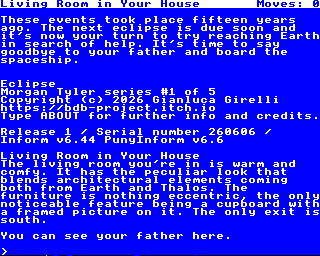
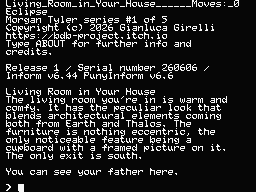
- Download a disk image for a retro computer and play it on an emulator or real hardware.
Credits
Game
Original concept, game design and coding by Bonaventura Di Bello.
English translation and game skeleton by Garry Francis.
Game redesign and coding by Gianluca Girelli.
Play testing by Andrew Schultz, Charles Moore, Garry Francis, Pablo Martinez and Robert Eggleston.
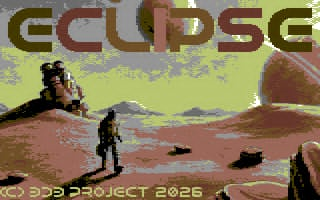
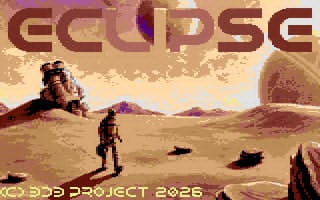
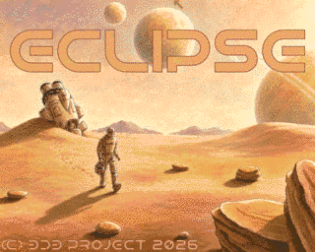
Original hand-drawn cover image © 2026 Gianluca Girelli, colored with Artificial Studio. Additional art and lettering by Marco Riva. Font by Isaak K.
Other resources
Inform 6 compiler, language and library originally written by Graham Nelson and now maintained by David Griffith, David Kinder, Andrew Plotkin et al.
PunyInform library written by Johan Berntsson and Fredrik Ramsberg based on the Inform 6 library.
ZAbbrev written by Henrik Åsman.
Parchment interpreter written by Dannii Willis et al.
Apple IIe disk image creator written by Bill Martens, using interpreter written by Infocom and interleaving utility written by Steve Nicholas.
Atari 130XE disk image creator and interpreter written by Jinroush.
Atari ST interpreter written by Infocom.
Commodore disk image creator and Ozmoo interpreter written by Johan Berntsson and Fredrik Ramsberg.
BBC/Electron disk image creator and Ozmoo interpreter for Acorn computers written by Steve Flintham based on the Commodore version.
VEZZA interpreter for Amstrad CPC/PCW and MSX written by Shawn Sijnstra.
Download
Install instructions
Z-code interpreters
Download the z5 file and open it in a Z-code interpreter that supports the z5 story file format. There are many Z-code interpreters available for all the major, minor and retro platforms. See IFWiki for a list of the most common ones, together with download links.
Further downloads can be found at the Interactive Fiction Archive. Navigate to infocom/interpreters for Z-code only and interpreters-multi for both Z-code and other formats.
Retro computers
Download the disk image for your retro computer of choice. Auto-boot on an emulator for that computer or transfer the disk image to appropriate media to play on real hardware. If you're a retro computer user, you'll know how to do this. See notes for specific computers below.
Atari 130XE
The interpreter requires 128K, so you'll need an Atari 130XE or equivalent. There is no UNDO with this interpreter, so save your game before doing anything risky.
Atari ST
If you want to run from a hard drive, create a new folder for this game and copy the PLAY.PRG and STORY.DAT files to that folder. If using a colour monitor, change to medium resolution. Double-click on PLAY.PRG to run the game. You can also copy the COVER.PI1 file from the AUTO folder, but you'll need a way to view this manually in low resolution on a colour monitor.
BBC/Electron
When the Ozmoo screen appears, select a screen mode (the default is 40x32), note the in-game controls (particularly Shift to show the next page of text when playing the game), then press Enter to continue.
Commodore 128
The game can be run in 40 columns or 80 columns, depending on your configuration. If using the VICE emulator, type GRAPHIC 5 to select the 80-column screen. This version does not auto-boot, so type LOAD "*",8,1. When the READY prompt appears, type RUN.
MSX
If the game doesn't auto-boot, type RUN "CPM".
Spectrum Next
The Spectrum Next has a built-in Z-code interpreter. Download the z5 file and copy this to the /GAMES/Z-Machine folder on the SD card provided with the computer. Insert the SD card into the Spectrum Next, navigate to the above folder, use the arrow keys to select the z5 file and press ENTER to start the game.

Comments
Log in with itch.io to leave a comment.
Great work. It made me interested in the original Italian version. Do one of the images included here have the original language?
Hello there. No, they don't. We didn't want to tinker with the original images for many different reasons. However, they can easily be found online in sites like https://ready64.org/. Thank you for playing. The sequel is almost in beta phase and will be coming soon
thanks for an other gem!
Thank you for playing, and stay tuned for more. The sequel is already in the making and will be out in a month or so.